Azure Application Registration
Applicable to: On-Premises (Single-tenant) environment
To link the Security365 product with a Microsoft account, the customer's Azure account must beRequired Permissions and Redirection URIYou need to create this registered Azure Application.
1. Create Azure Application
1.1 Application Creation
To sign up for a Microsoft account in an On-Premises (Single-tenant) environment, the customer must directly create an Azure application with the necessary permissions in their Azure account.
- With a Microsoft admin accountMicrosoft Azure Integrated ConsoleAccess the page.
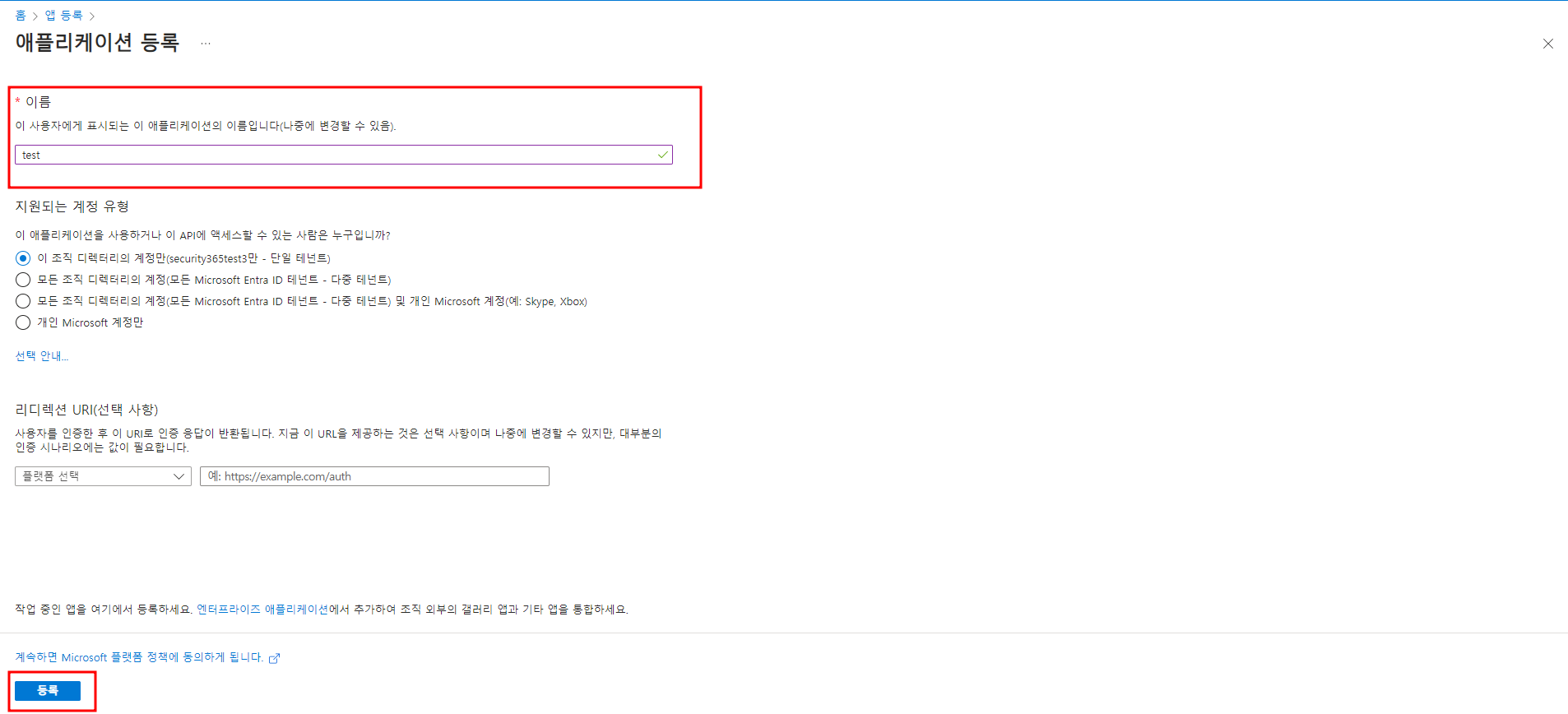
앱 등록Moving to the service page.새 등록Click the button to go to the application registration page. After entering the application name,등록Click the button.
1.2 API Permission Settings
Configure the permissions required for the application for SP login and account synchronization.
앱 등록Find and click on the application created on the service page.관리 > API 사용 권한Go to page.권한 추가Click the button andMicrosoft GraphSelect to add permissions to the application.
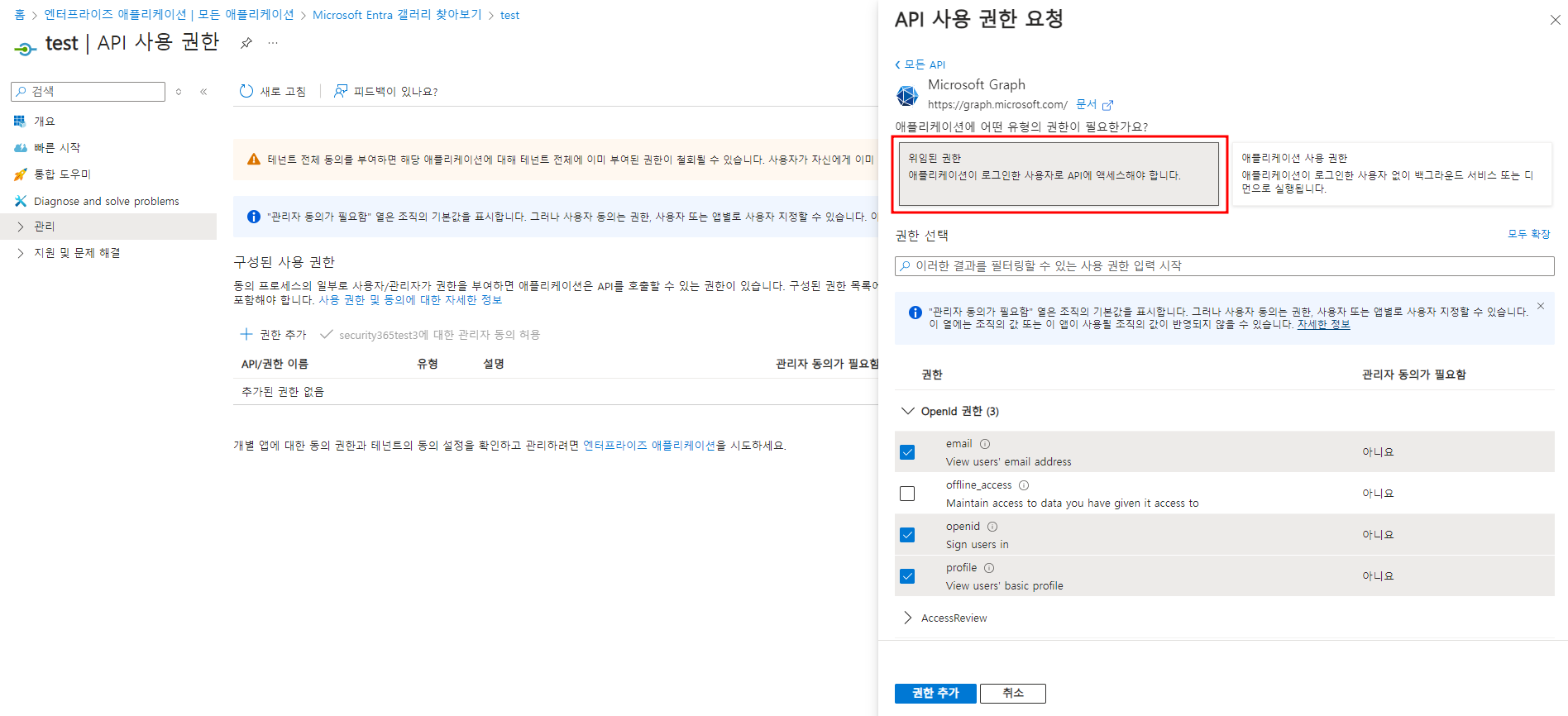
The additional permission information is as follows.
| Microsoft API Types | type | Permissions | Description | Purpose |
|---|---|---|---|---|
| Microsoft Graph | Delegated Authority | View users' email address | SP Login | |
| Microsoft Graph | Delegated Authority | openid | Sign users in | SP Login |
| Microsoft Graph | Delegated Authority | profile | View users' basic profile | SP Login |
| Microsoft Graph | Delegated Authority | RoleManagement.Read.All | Read role management data for all RBAC providers | Checking Permissions During Registration |
| Microsoft Graph | Delegated Authority | RoleManagement.Read.Directory | Read directory RBAC settings | Permission Check on Sign-Up |
| Microsoft Graph | Delegated Authority | User.Read | Sign in and read user porfile | Account Synchronization |
| Microsoft Graph | Application Permissions | Directory.Read.All | Read directory data | Account Synchronization |
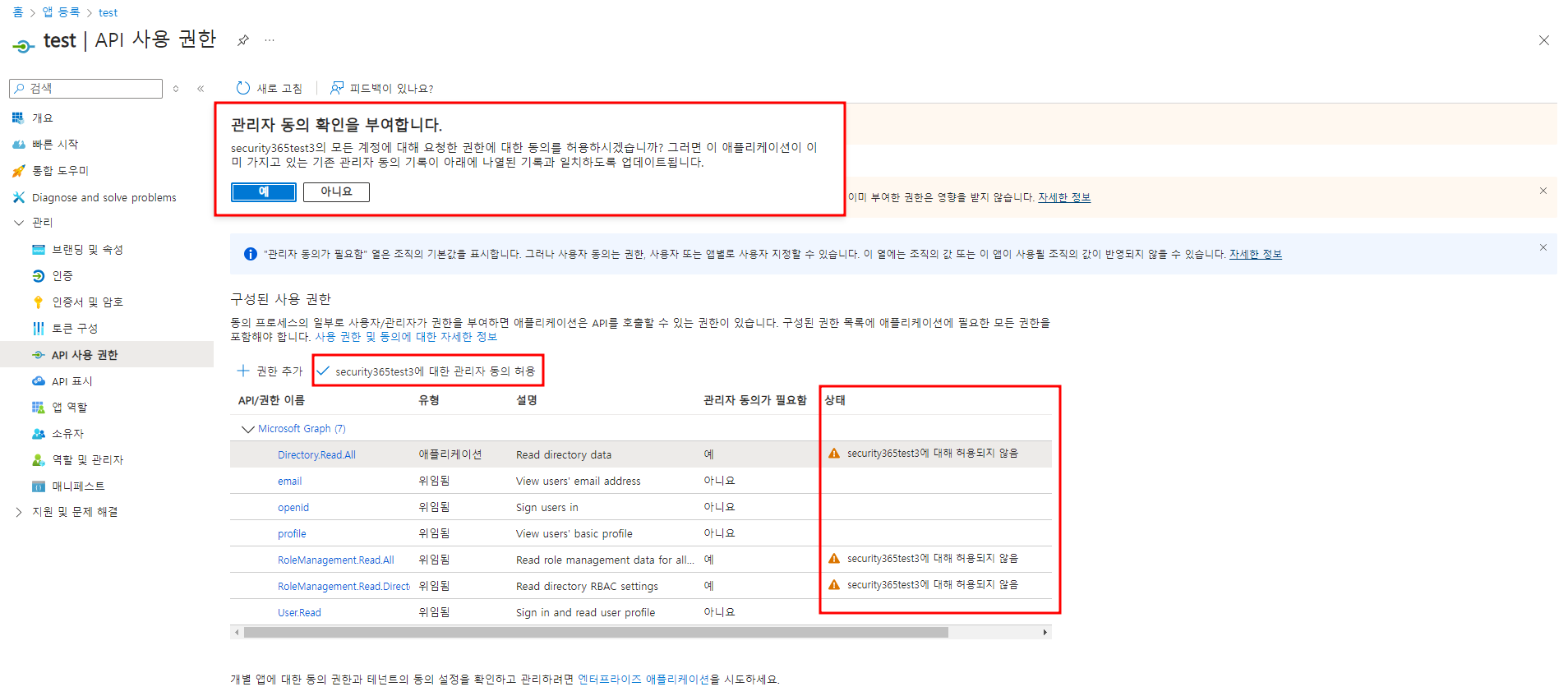
- After adding permissions,
관리자 동의 허용Click the button to approve the permissions requested by all accounts within the tenant.
1.3 Authentication Settings
You need to register a URI that can send authentication results when the user has completed logging in or logging out.
관리 > 인증Go to page.플랫폼 추가Click the button웹platform and단일 페이지 애플리케이션Adding a platform.
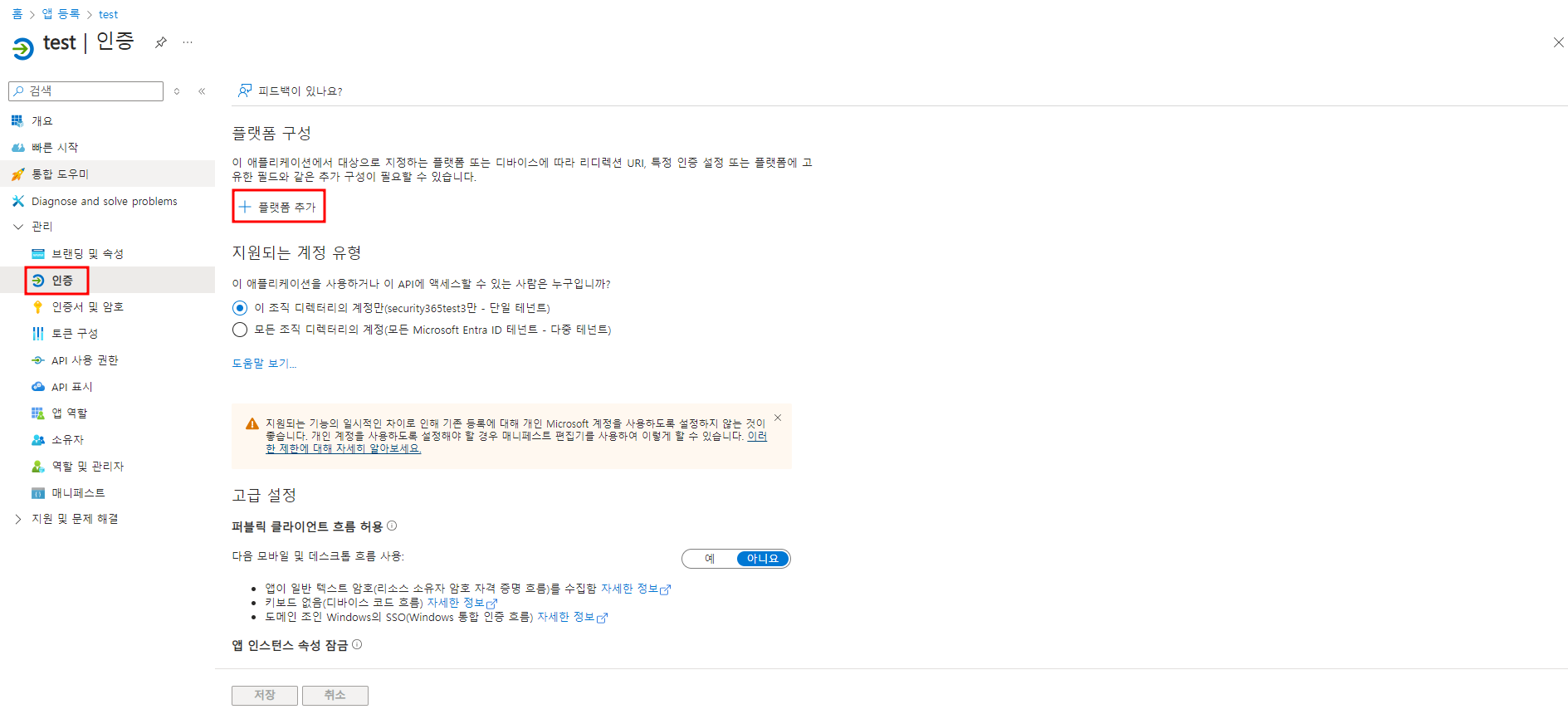
The redirect URIs that need to be added for each platform are as follows.
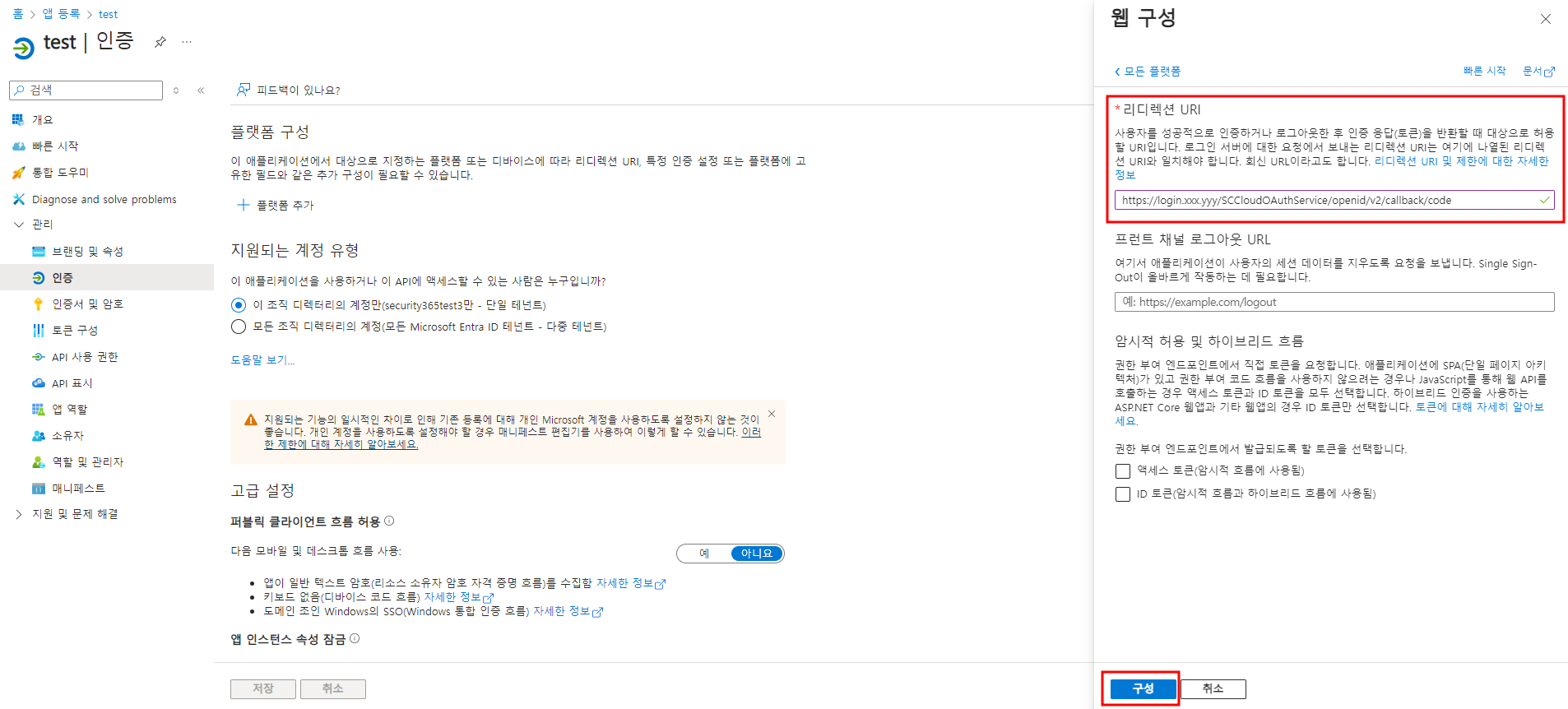
| type | URI | Description |
|---|---|---|
| Web Redirect URI | https://login.xxx.yyy/SCCloudOAuthService/openid/v2/callback/code | SP Login |
| https://login.xxx.yyy/SCCloudOAuthService/openIdCallback | SP Login | |
| Single Page Application Redirect URI | https://login.xxx.yyy/callback | SP Login |
| https://portal.xxx.yyy/signup | Sign Up | |
| https://portal.xxx.yyy/setting/inbound | Azure Account Integration |
※ xxx.yyy must be changed to the domain address for each environment.
- Allows issuing ID tokens to request tokens from the authorization endpoint.
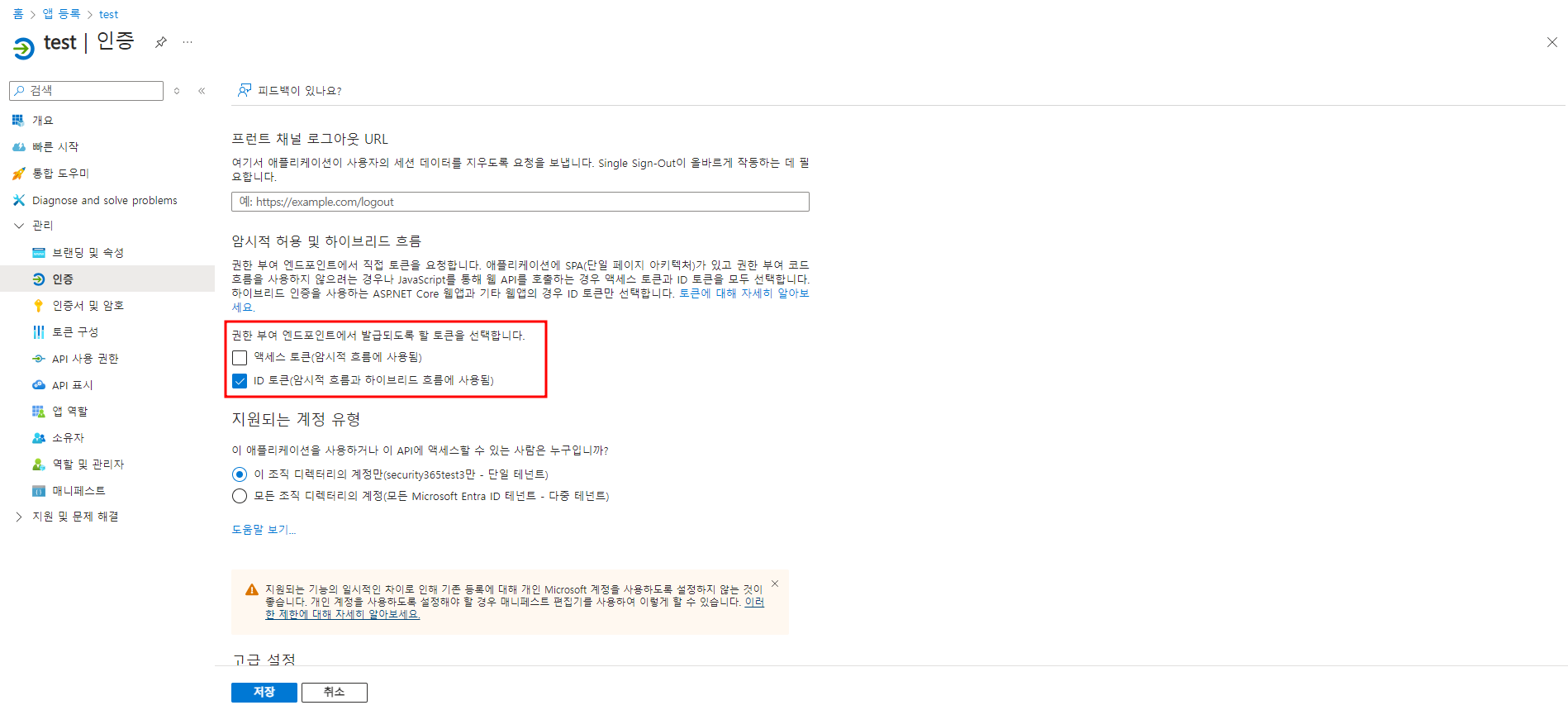
저장Press the button to save the settings.
1.4 Certificate and Password Settings
To use the created Azure application, you need to obtain a client secret.
관리 > 인증서 및 암호Go to page.새 클라이언트 암호Click the button to issue a client password.
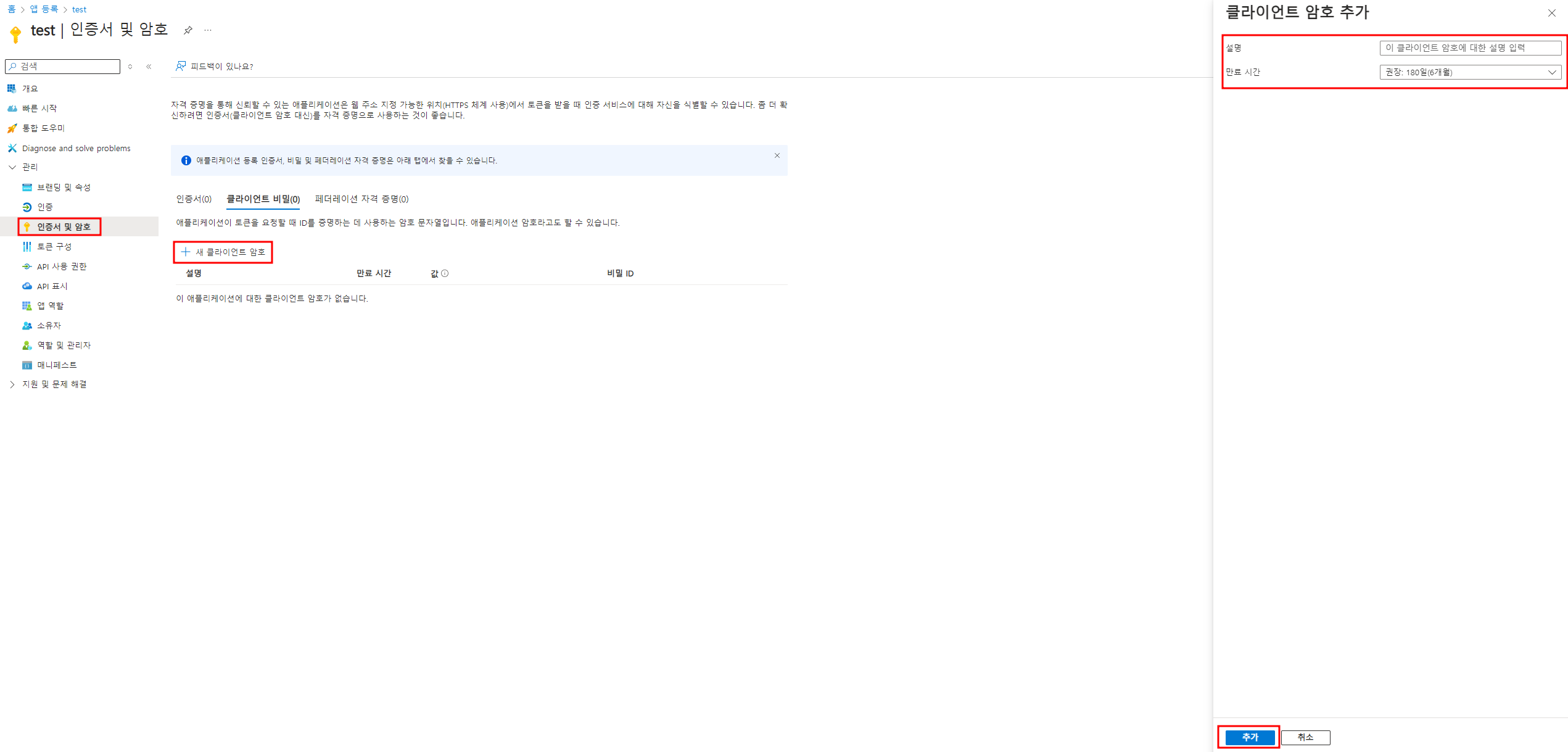
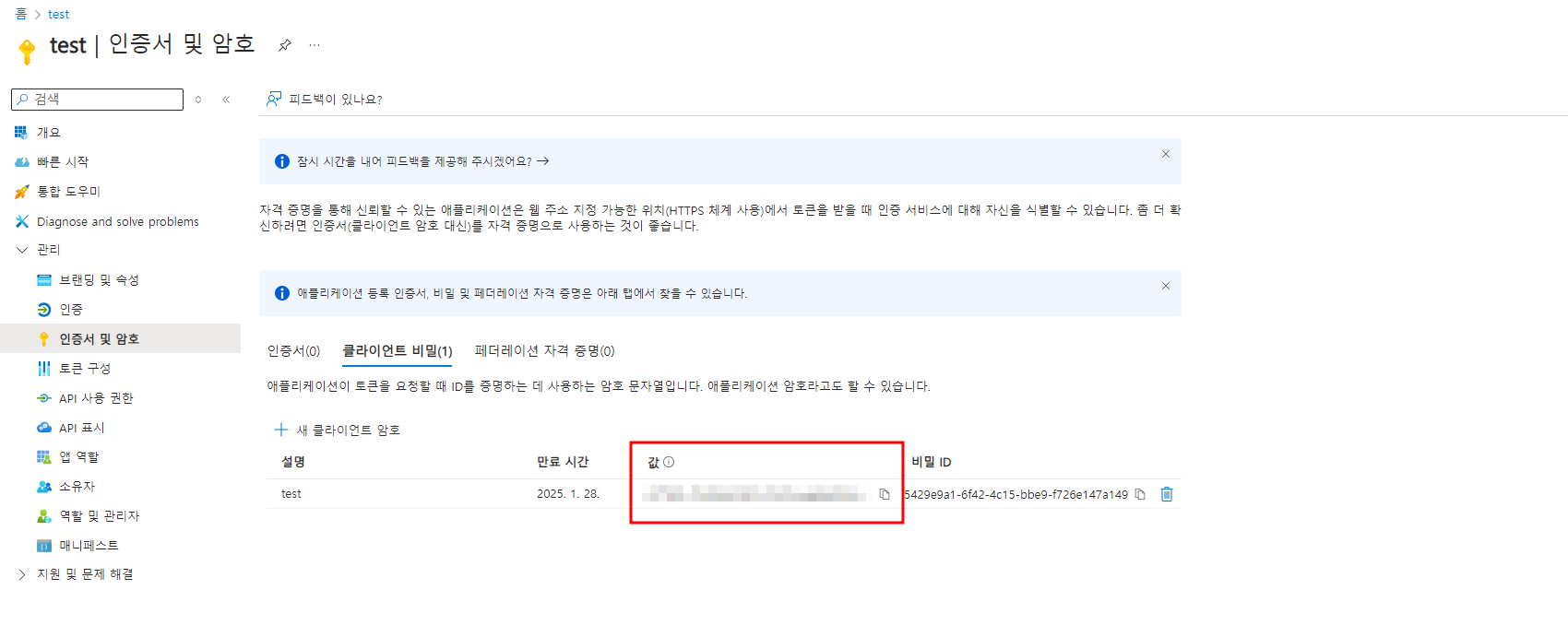
- This password is needed later when setting up app information (Security365 Portal App Secret) on the Security365 master admin page, so please keep it safe separately.
2. Setting Azure Application Information in the Master Admin Page
Before completing the environment setup and signing up, you need to enter the Azure application information on the master admin page of the management center.
- Log in to the management center with the master administrator account.
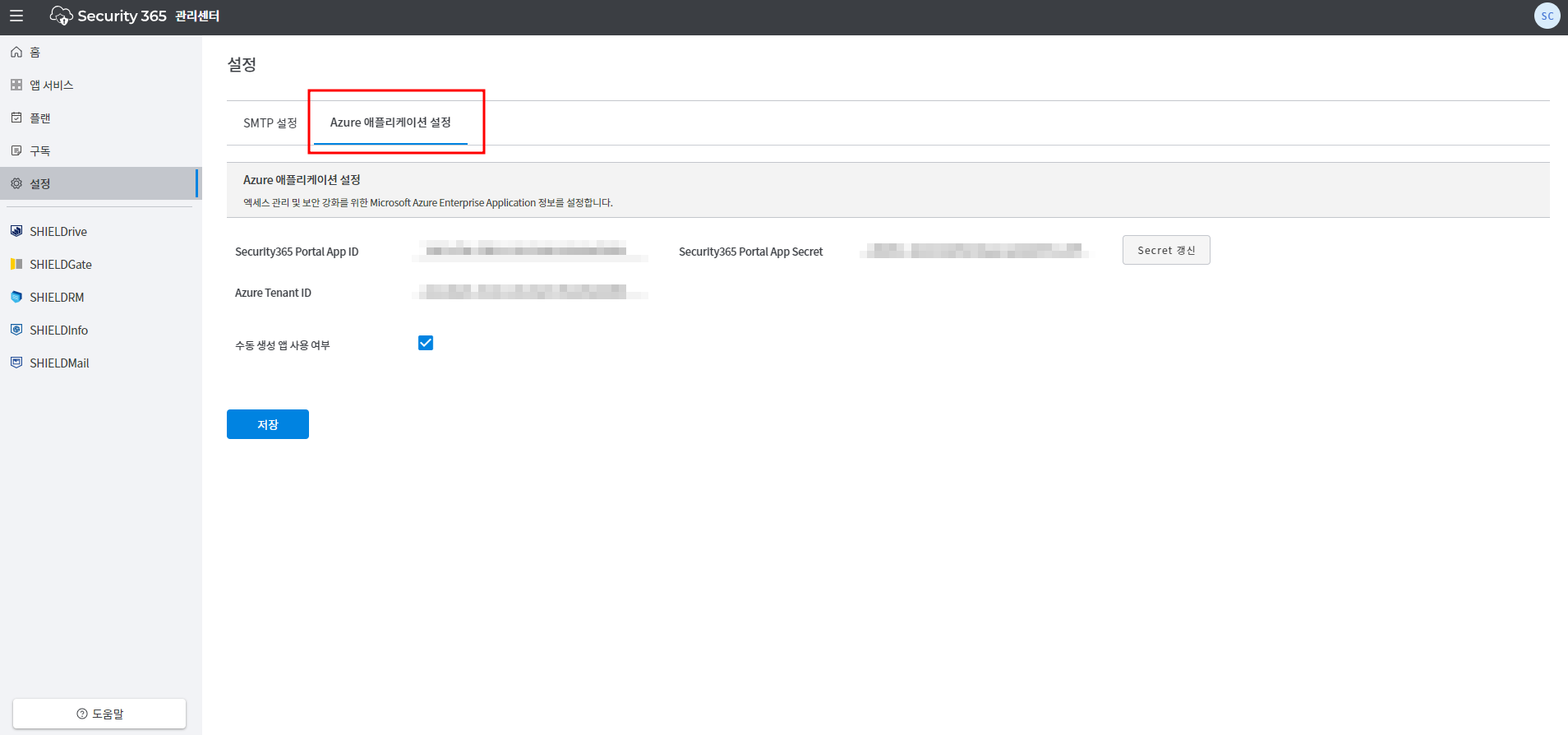
설정 > Azure 애플리케이션 설정Moving to the tab.
-
Enter the following configuration values.
Settings Description Security365 Portal App ID Created Azure Application ID Security365 Portal App Secret Generated Azure application client secret Azure Tenant ID Azure Directory (Tenant) ID -
수동 생성 앱 사용 여부checks. -
저장Click the button to save the settings. -
Once the setup is complete, proceed with the registration.
* Client Password Renewal Method
- Microsoft Azure Integrated ConsoleAccess.
- You will receive a new client secret for the existing application.
- Log in to the Security365 management center with the master administrator account.
설정 > Azure 애플리케이션 설정Moving to the tab.SECRET 갱신After clicking the button, enter the existing password and the newly issued password.저장Click the button.
© SOFTCAMP Co., LTD. All rights reserved.